Logging in
How to sign in to the Whisker.io web portal, recover a forgotten password, change your password, turn on two-factor authentication, and set the HMI PIN code used at on-site panels.
To sign in to the mobile app, see Installing and signing in. The app uses the same username and password.
Sign in
- Open a web browser and go to https://www.whisker.io.
- On the Whisker.io™ - Login panel, enter your Username and Password. Your username is not your email address.
- Click Login.
If two-factor authentication is on for your user, the page now asks for a code (see The two-factor step). If your organization requires an HMI PIN code and you don't have a valid one yet, it asks you to set one (see Setting your PIN at sign-in). Otherwise you land on the map of your account's locations.
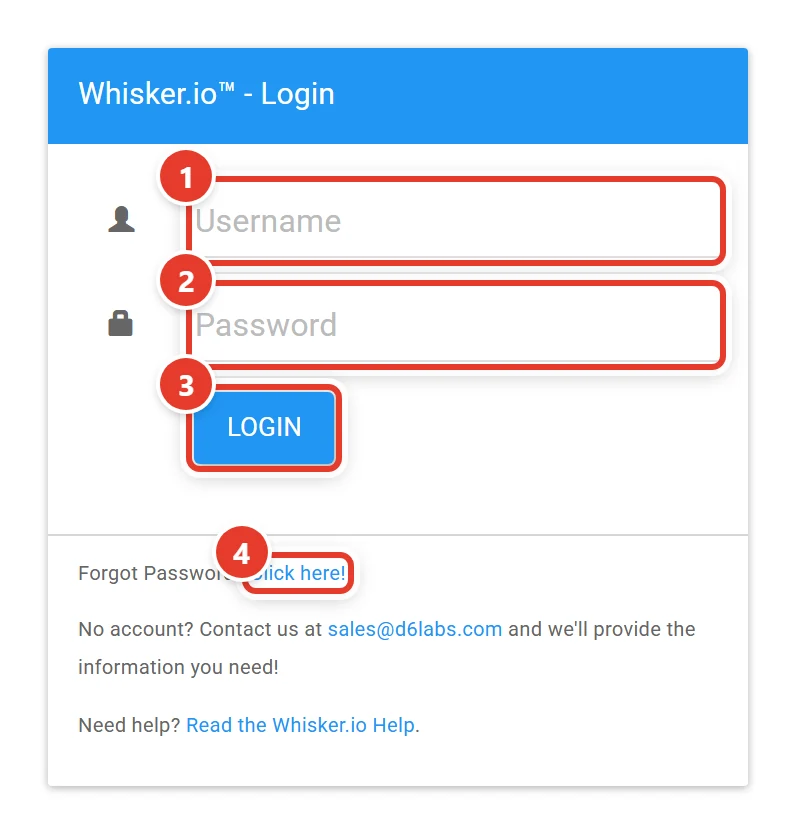
- Username.
- Password.
- Login.
- Forgot Password? Click here!
The footer of the login panel has two links:
| Link | What it's for |
|---|---|
| Forgot Password? Click here! | Self-service password reset (see below) |
| No account? | Contact sales@d6labs.com. You can't create an account from the login page. People joining an existing account are invited by that account's administrator (see Managing users). |
How long you stay signed in
A normal sign-in lasts one day, after which you sign in again. View Only logins, which are meant for wall displays, stay signed in on that browser (see View Only users).
The two-factor step
If two-factor authentication (2FA) applies to you, after you click Login the page changes to Enter your code. What it asks for depends on how you (or your organization) set it up:
"Enter the 6-digit code from your authenticator app for Whisker.io."
- Open the authenticator app on your phone and find Whisker.io.
- Type the 6-digit code it shows into the six boxes, then click OK (or press Enter).
The code changes every 30 seconds; use the one showing now. Each code works once.
"We texted a 6-digit code to your phone ending in 1234."
- Check your phone for a text reading "Whisker.io: \<code> is your 2FA Login Code. Do not share this code with anyone."
- Type the code into the six boxes, then click OK (or press Enter).
If your user has no mobile number that can take texts, the code is emailed instead and the screen says so.
The cursor starts in the first box and moves along as you type; Backspace goes back. You can also paste the code, and many phones offer to fill in a texted code. OK stays grey until all six digits are entered.
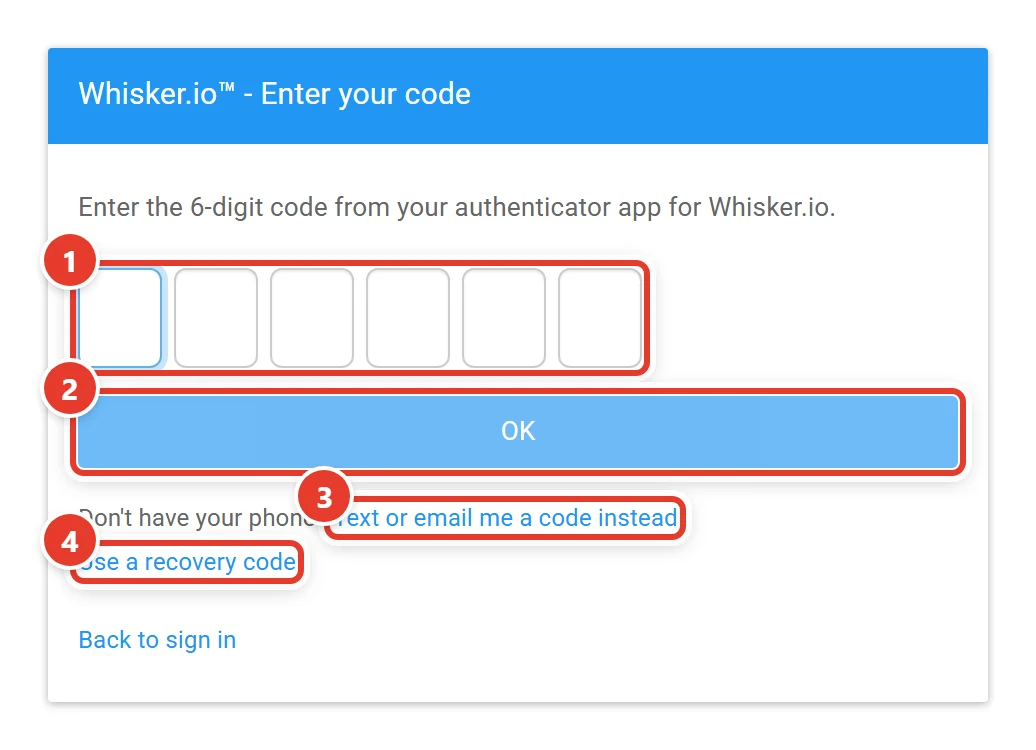
- Type the 6-digit code; each box takes one digit.
- OK (it lights up once all six digits are in).
- Text or email me a code instead if you don't have your phone (when your account allows it).
- Use a recovery code.
| Texted codes are sent from | +1 (405) 253-5370. Save it as a contact so the codes aren't filtered |
| Texted code lifetime | 10 minutes, and each code works once |
| Resend | Texted codes only: the button beside the boxes counts down (Resend in 0:30). When it says Resend code, click it for a new code |
Every text has a new code, and it replaces the earlier one: always use the code from the most recent text. Back to sign in returns to the login form; enter your password again.
Don't have your phone?
- Text or email me a code instead (authenticator app users) sends a one-time code by text, or by email when you have no mobile number. Your organization can turn this off.
- Use a recovery code lets you type one of the 10 recovery codes you saved when you set up
the app (for example
K7QTM-XR4HD; capitals, spaces and the dash don't matter). Each code works once. You'll see how many you have left, and get an email saying one was used. - No codes left and no backup option? Ask your administrator to Reset 2FA for you (see Managing users).
Too many wrong codes
After 5 wrong codes in a row (of any kind), signing in is paused for 15 minutes. The screen shows a countdown, no codes are sent or accepted until it ends, and you get an email about it. If you didn't try to sign in, someone knows your password: use Forgot Password? straight away and tell your administrator.
Note
"Your user has no mobile number or email address a code can be sent to" means your user record needs a valid mobile number (10 digits, or 11 starting with 1) or an email address. An administrator can correct it in Control Panel → Account Users → Edit User.
Setting up an app at sign-in
If your organization requires an authenticator app and you haven't set one up, signing in shows Set up your authenticator app instead:
- Install an authenticator app on your phone, for example Microsoft Authenticator, Google Authenticator or Authy.
- In the app, add an account and scan the QR code on the screen. If you can't scan it, type the key shown under it (choose time-based).
- Type the 6-digit code the app now shows for Whisker.io and click OK.
- Save the recovery codes that appear: Copy or Download them, tick I've saved these codes somewhere safe, and click Continue.
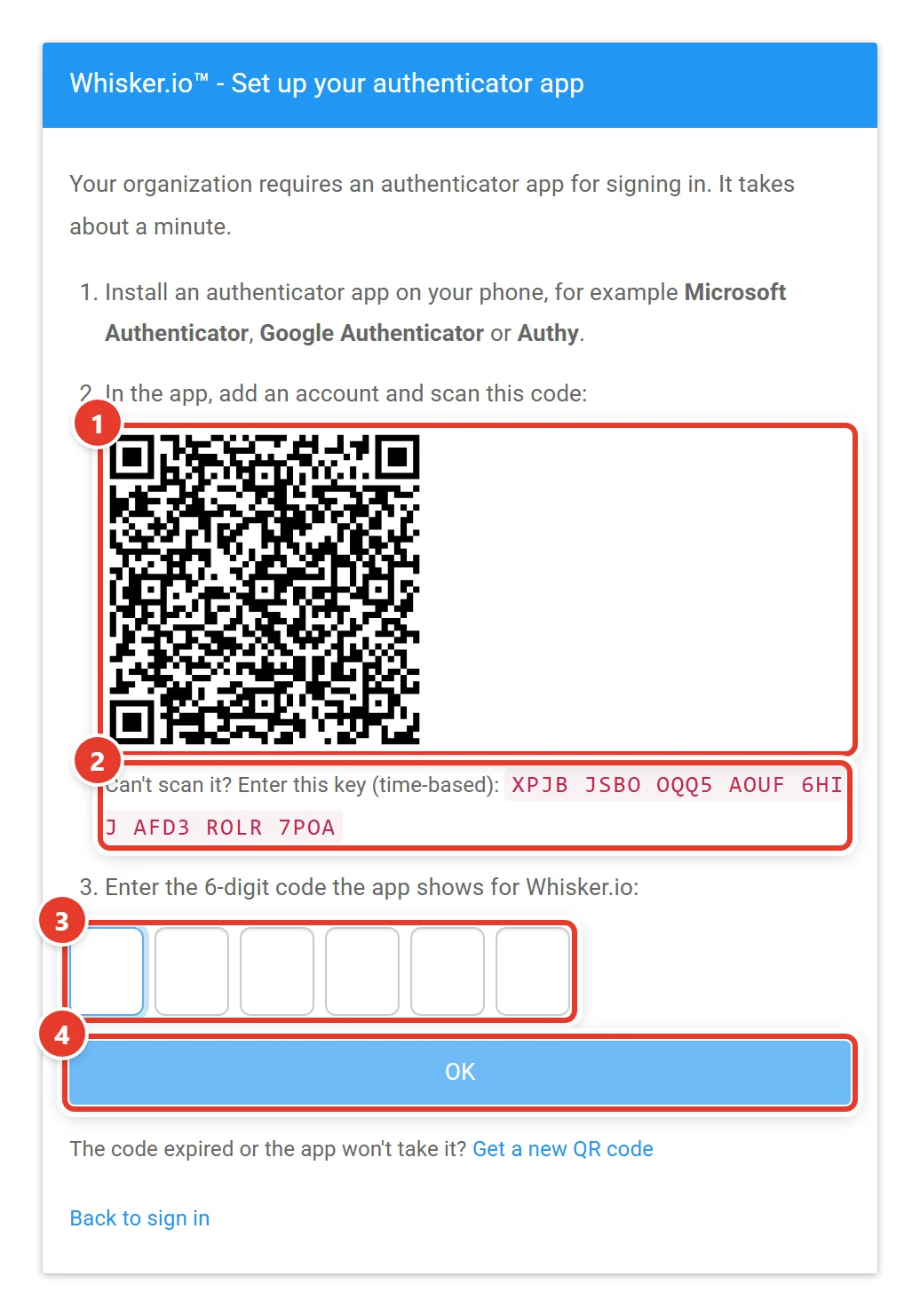
- Scan this QR code with the app.
- Or type this key into the app.
- Enter the code the app shows.
- OK.
If the app won't take the code, use Get a new QR code and start again (remove the old Whisker.io entry from the app first).
Next, Whisker.io shows your ten recovery codes, once:
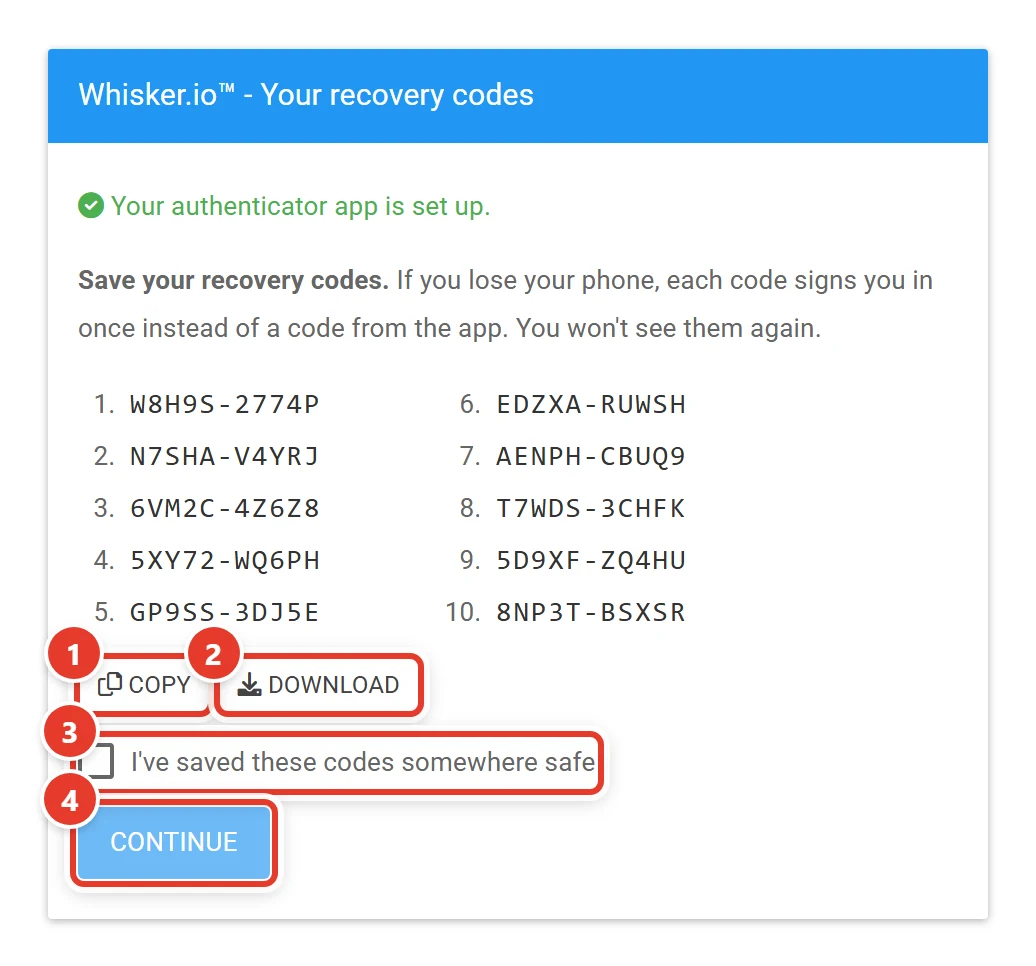
- Copy the codes,
- or Download them as a file.
- Tick I've saved these codes somewhere safe.
- Continue signs you in.
Setting your PIN at sign-in
If your organization requires HMI PIN codes and yours is missing or no longer fits the required length, the login panel asks for one after your password (and 2FA code) are accepted. The message tells you why, for example "Your organization changed its PIN Code settings, so your previous PIN Code is no longer valid." or "An administrator reset your PIN Code."
- Enter a PIN of the length shown, twice.
- Click Save PIN and Sign In.
You are not signed in until the PIN is saved. See Your HMI PIN code for the rules.
Forgot your password?
- On the login page, click Forgot Password? Click here! The Whisker.io™ - Forgot Password panel opens.
- Enter either your Username or your Email. You don't need both.
- Click Reset Password. You'll see "If that login exists, we've emailed a link to set a new password." The message is the same whether or not the login exists.
- Open the email and click the link. It works for 24 hours, once.
- Choose your new password, enter it again, and save. Then sign in with it.
Your current password keeps working until you use the link. Using it logs out every browser and phone signed in as you, and you get an email saying your password was changed.
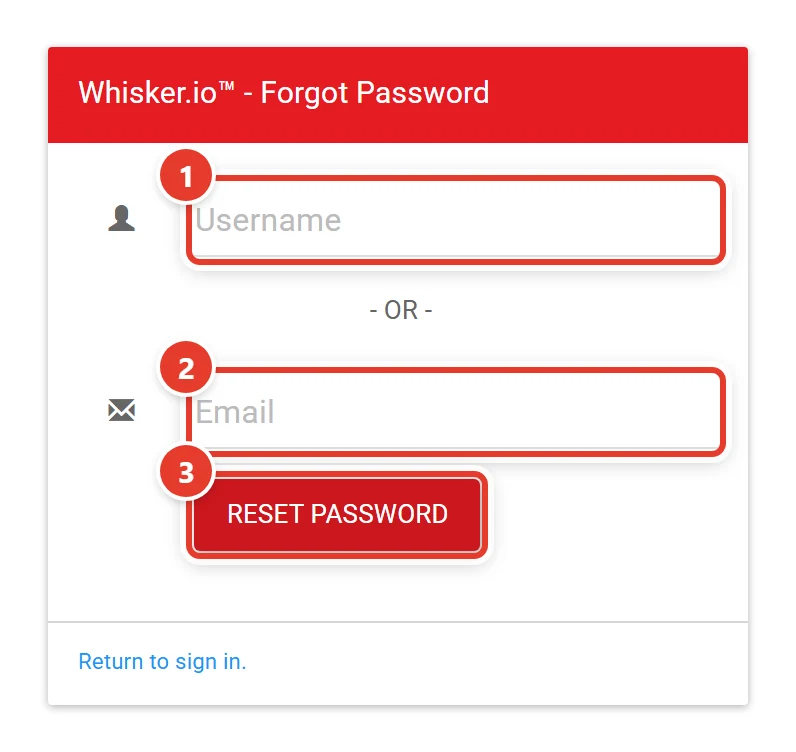
- Your Username,
- or your Email.
- Reset Password emails you a link.
If you sign in with a temporary password (for example from an order sign-up), a Choose your own password panel appears. Click Email me the link and follow the link in the email.
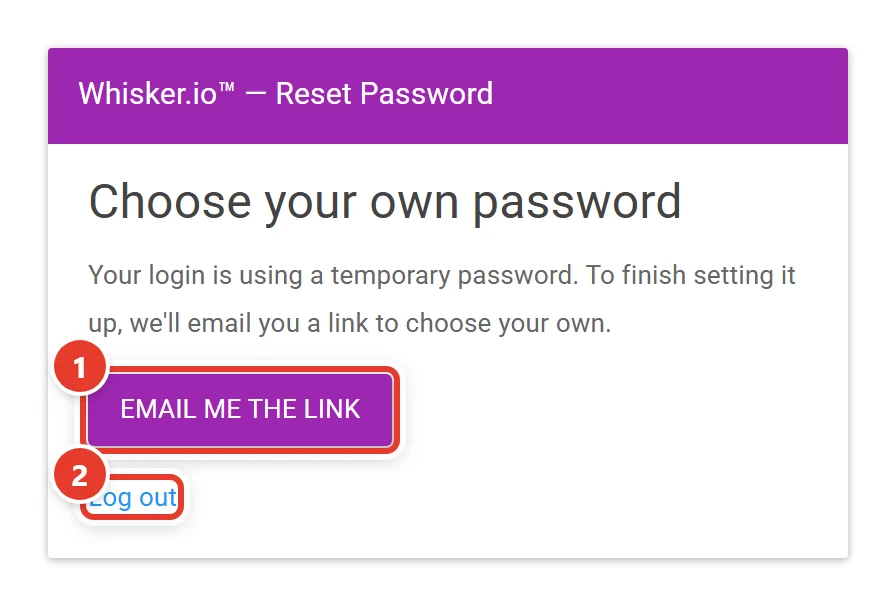
- Email me the link to choose your own password.
- Log out.
Return to sign in. at the bottom of the Forgot Password panel takes you back.
Change your password
- In the top menu, click Control Panel and open the My User Info tab.
- On the Password: row, click Email me a link.
- Open the email and click the link (24 hours). Choose your new password, enter it again, and save.
Your current password keeps working until you use the link. Using it logs out every browser and phone signed in as you.
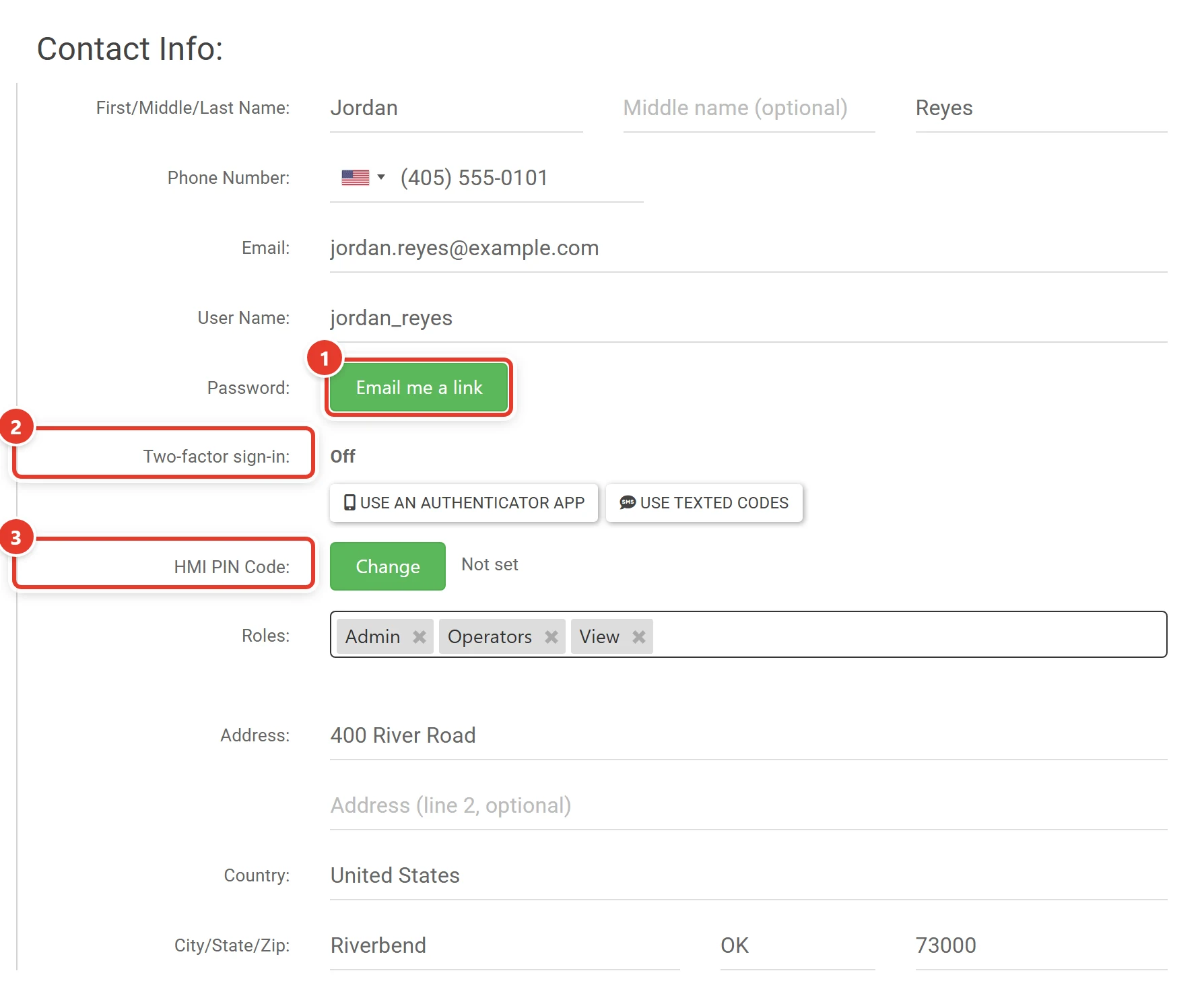
- Email me a link to change your password.
- Two-factor sign-in: how you sign in, and buttons to change it.
- HMI PIN Code: Change your PIN.
Passwords must:
- be at least 7 characters long, and
- contain at least one letter and at least one number.
Tip
Administrators who hold the Add/Edit Users role can't set another user's password, but they can reset it: Control Panel → Account Users → Edit User → Password: → Reset password. The user is logged out and emailed a link to choose a new one.
Turn on two-factor authentication
With two-factor authentication, signing in needs a code as well as your password, so a stolen password alone can't get into your account. There are two kinds:
- An authenticator app on your phone (recommended). It works without phone signal, and comes with 10 recovery codes for when you lose your phone.
- Texted codes sent to your mobile phone.
Your organization's administrator may require one of them for everyone (see Account settings). If they haven't, you choose.
- Go to Control Panel → My User Info. The Two-factor sign-in: row shows what you use now.
- Choose:
- Use an authenticator app: follow the three steps that open (install an app, scan the QR code or type the key, enter the code it shows), then save your recovery codes.
- Use texted codes: needs a mobile number that can receive texts in Phone Number:.
- Turn off: asks for your password.
Once you use an app, the same row offers:
| Button | What it does |
|---|---|
| Move to a new phone | Set the app up again on another phone (asks for your password). The old phone stops working once you finish |
| New recovery codes | 10 new codes (asks for your password). The old ones stop working |
| Use texted codes / Turn off | Leave the app (asks for your password). The app and your recovery codes stop working |
Every change is emailed to you, and the change applies from your next sign-in.
Your HMI PIN code
Your HMI PIN Code is a short number, separate from your password, that you enter at on-site Whisker.io panels and in the WhiskerHMI PC application. It is not used to sign in to the web portal or the mobile app.
Set or change your PIN
- Go to Control Panel → My User Info.
- On the HMI PIN Code: row, click Change. The text beside the button shows whether your PIN is set and whether it meets your organization's requirement.
- In the Change HMI PIN Code dialog, enter the PIN in New PIN: and Re-Type New PIN:, then click Confirm.
Only you can set your own PIN. Nobody, including administrators, can see it.
PIN rules
- Digits only.
- If your organization requires PIN codes, the PIN must be exactly the length it has chosen (between 4 and 9 digits). Otherwise any length from 4 to 9 digits is accepted.
- Easy-to-guess PINs are refused: one digit repeated (1111), a straight run (1234, 4321), a repeated pair (1212) and very common PINs.
- To use a PIN at a panel you must also belong to the role assigned to Local Device Login (see Roles and permissions).
- After 5 wrong PINs, your PIN is locked for 5 minutes. Repeated lockouts last longer, up to 30 minutes. The lock applies to your PIN only; other people can still use theirs.
Administrators set whether PINs are required, and their length, in Account settings. If you forget your PIN, ask an administrator to reset it (see Managing users); you'll set a new one the next time you sign in.
Log out
Click Log Out at the right end of the top menu, then click Logout in the WhiskerIO - Logout dialog. Always log out on shared computers: otherwise the next person to use the browser is still signed in as you.