Alerts
Alerts are how Whisker.io watches your equipment when nobody is looking at a screen. This section covers everything about them: setting them up, deciding who is notified and when, what the texts, emails and calls look like, and what to do when one arrives.
How it fits together
A device sends a reading. If that reading breaks a rule you set on the channel (too high, too low, an input changed state, or no readings at all for a while), the alert fires. The alert points at a schedule group, which works out who is on call right now and how to reach them: text, email or voice call, everyone at once or one person at a time. Someone acknowledges the alarm (by replying to the text, pressing 1 on the call, or clicking Ack on the Alerts page), which stops the notifications and tells everyone else who is handling it. When the reading returns to normal, the alert clears and the people on call get a short "cleared" message. Afterwards your team documents what caused it and how it was fixed on the Alert Notes page.
The alerting runs on Whisker.io's servers, not on your phone or browser, so it works whether or not anyone is logged in.
Start here
| I want to... | Go to |
|---|---|
| Understand what happens from reading to clear | How alerts work |
| Create an alert on a channel, or change one | Creating and editing alerts |
| Add the people who can be notified | Alert contacts |
| Decide who is on call on weekdays, nights and weekends | Schedule groups |
| Have someone cover for a person who is out, or set up holidays | Covering and holidays |
| Stop an alarm from notifying more people | Acknowledging alerts |
| See what the texts, emails and calls say, or deal with STOP and failed texts | Texts, emails and calls |
| Silence a device during maintenance | Snoozing alerts |
| See who was notified, or record cause and resolution | Alert history and notes |
Where to find alerts in the web portal
Click Alerts in the top menu. The Alerts page has five tabs:
| Tab | What it is for |
|---|---|
| Alerts | Every alert on the account: create, edit, see which are firing, acknowledge |
| Alert Notes | Past alert occurrences, with the cause and resolution your team wrote |
| Alert History | Every text, email and call that was sent (only shown if you have the View Alert History role) |
| Alert Schedules | Schedule groups, covers and holidays |
| Alert Contacts | The people alerts can notify, and whether their number and email are working |
Each location also has its own Alerts tab (next to Map/HMI and Tables) that shows only that location's alerts.
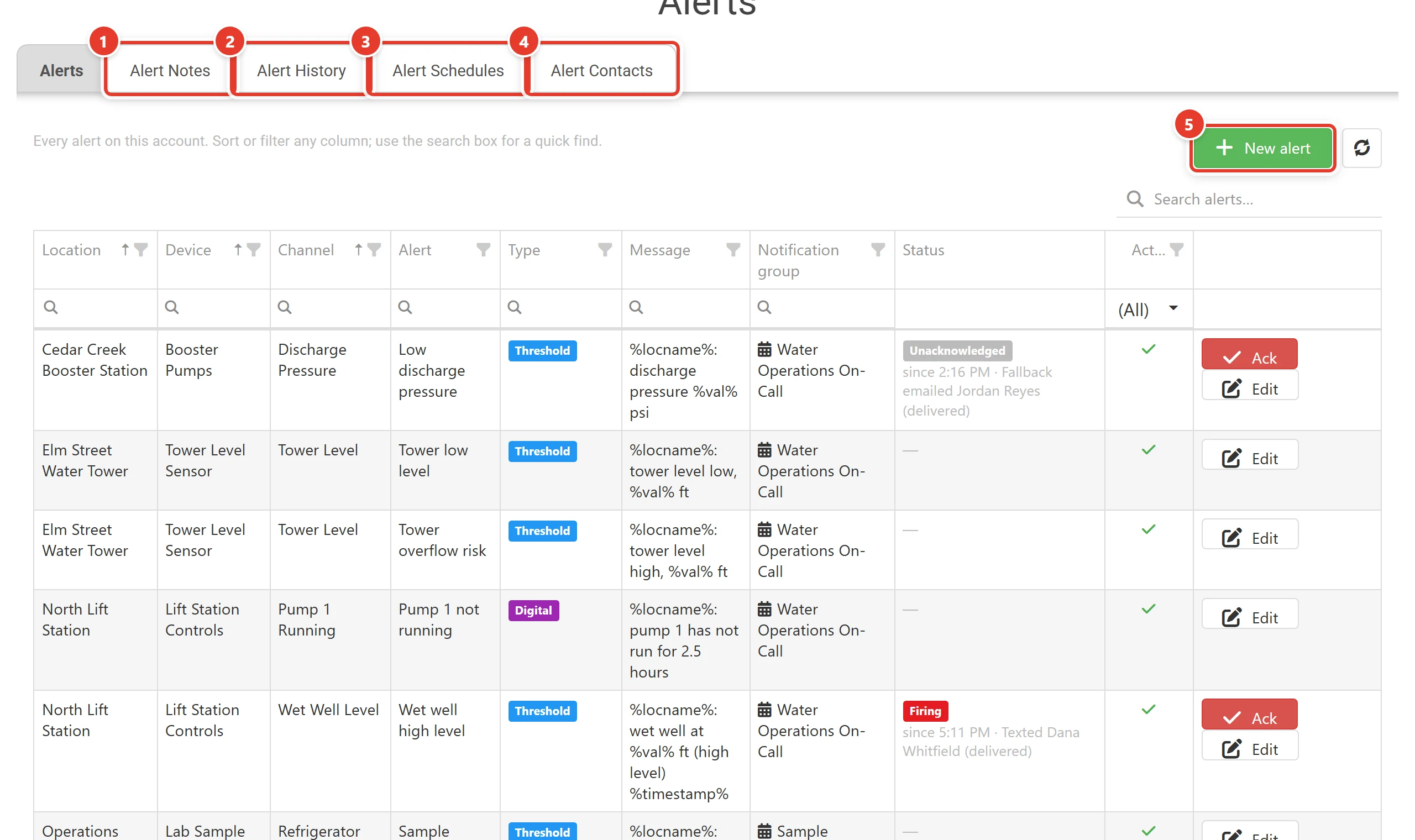
- Alert Notes: causes and resolutions.
- Alert History: every text, email and call.
- Alert Schedules: who is on call when.
- Alert Contacts: the people alerts notify.
- New alert.
Note
The mobile app shows alerts and can snooze devices, but it cannot acknowledge alarms, and its alert editor does not know about schedule groups. See Alerts in the mobile app.