Managing users
How to add people to your account, edit them, reset their PIN, and make sure the right people receive alerts. Users are managed in Control Panel → Account Users.
Note
Creating and editing other users needs the Add/Edit Users role (see Roles and permissions). Without it, the Create New User and Edit User buttons are not shown. Anyone can edit their own details on Control Panel → My User Info.
Users and alert contacts
Whisker.io keeps two related lists of people. Knowing the difference answers the most common question: "I created a user; why aren't they getting alert texts?"
| User | Alert contact | |
|---|---|---|
| What it is | A login for the web portal and mobile app | Someone alerts can notify |
| Can sign in? | Yes, with a username and password | No |
| Has roles? | Yes | No |
| Receives alert texts, emails and calls? | Only through an alert contact | Yes, that is its purpose |
| Where managed | Control Panel → Account Users | Alerts → Alert Contacts |
An alert contact can be linked to a user or standalone, for example an answering service, an on-call phone, or a manager who never signs in. When a contact is linked to a user, editing the user's name, email or phone number updates the contact too, so you maintain the person's details in one place.
Tip
Create a user for anyone who needs to see or do things in Whisker.io. Create an alert contact for anyone who needs to be notified. Most staff need both, and creating a user with User receives alerts? ticked makes both in one pass (see below).
Managing contacts directly, including their delivery status and opt-outs, is covered in Alert contacts. Who is notified for each alert, and in what order, is set by schedule groups.
The Account Users tab
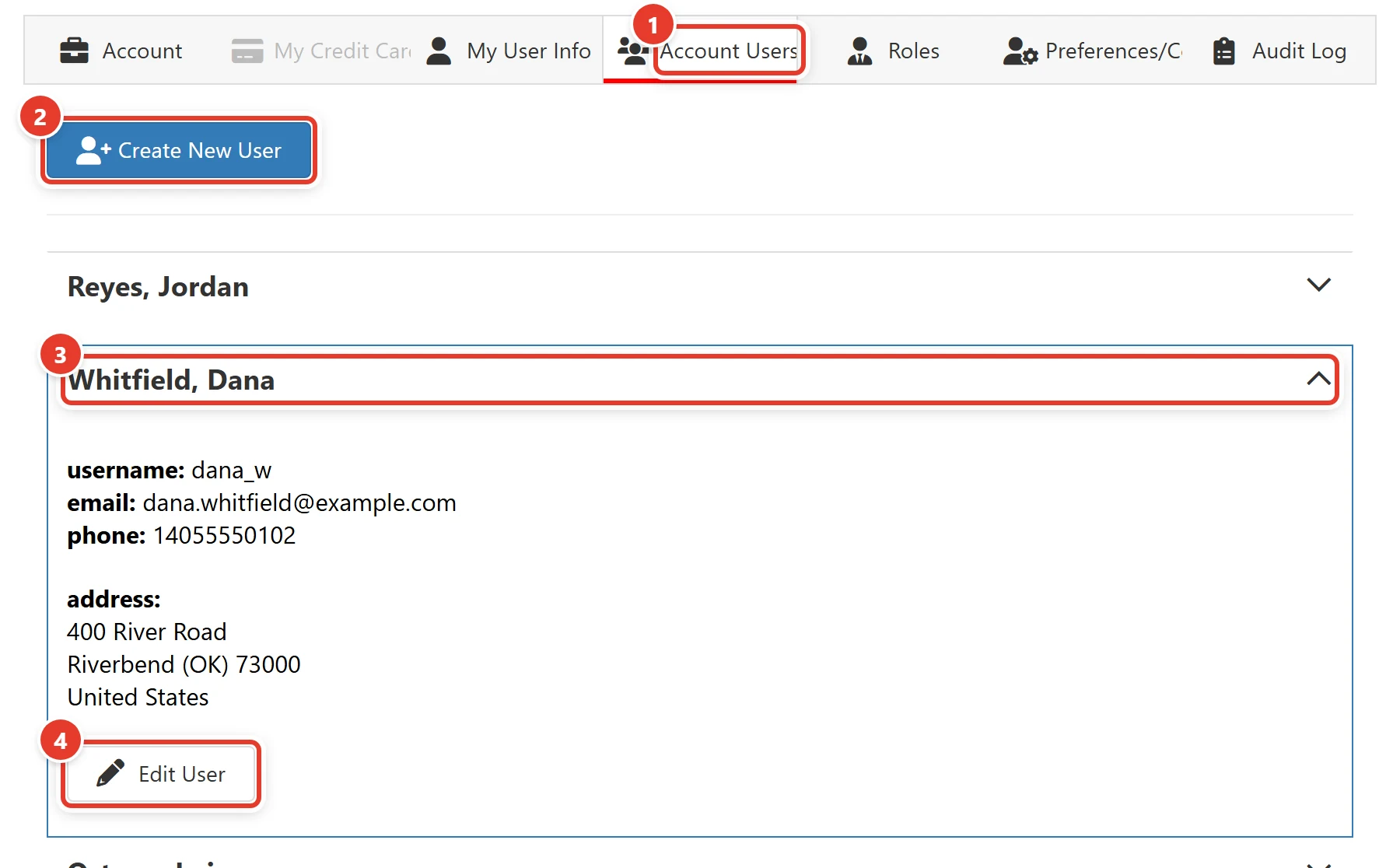
- Account Users in the Control Panel lists every user by name (Last, First Middle).
- Create New User invites someone new.
- Click a name to show their username, email, phone and address.
- Edit User opens their details.
Create a user
Go to Control Panel → Account Users and click Create New User. Fill in the Invite New User dialog:
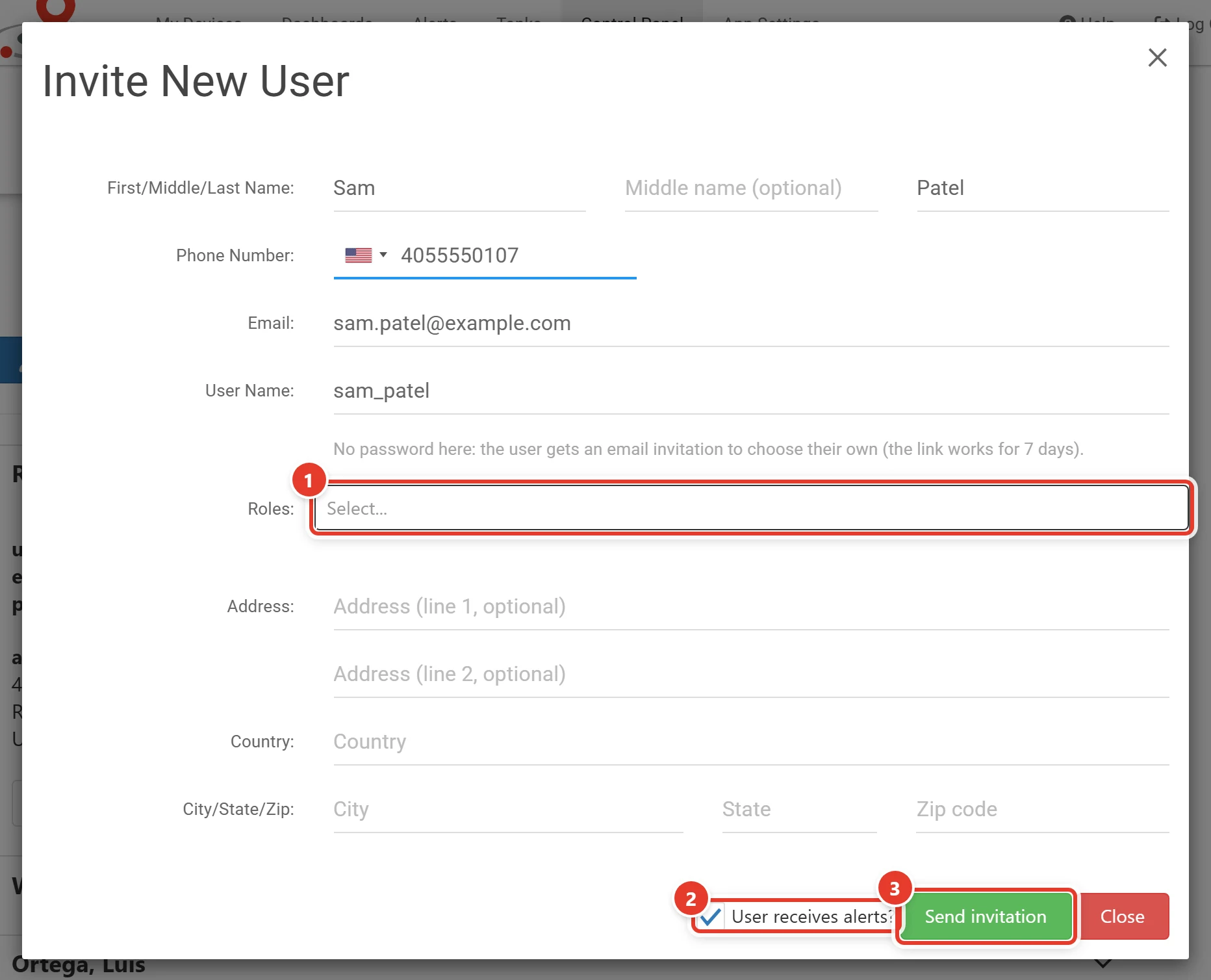
- Roles: pick each role the person belongs to (see Roles and permissions).
- Leave User receives alerts? ticked if they should get alert notifications. It is only shown when your account has devices.
- Click Send invitation. The user appears in the list.
Every field in the dialog
| Field | Notes |
|---|---|
| First/Middle/Last Name: | Middle name is optional |
| Phone Number: | The person's mobile number, with a country selector. Used for 2FA codes and, if they become an alert contact, alert texts. Digits only; a number starting with 1 must be 11 digits |
| Email: | A valid address, such as name@example.com |
| User Name: | At least 4 characters: letters, numbers and underscores only |
| Roles: | Tick each role the person belongs to, then click Apply in the list |
| Address:, Country:, City/State/Zip: | Optional |
If a field is wrong, a message names it: correct that field and click Send invitation again.
There is no password field. Whisker.io emails the new user an invitation with a link to choose their own password. The link works for 7 days. Until they use it, Edit User shows Invited, has not set a password yet and a Resend invitation button.
Subscribe a user to alerts: Set User Alerts
When User receives alerts? is ticked, the Set User Alerts dialog opens as soon as the user is created. Saving it:
- creates an alert contact for the user, copying their name, email and mobile number and linking it to the user, and
- adds that contact to every alert on the equipment you tick.
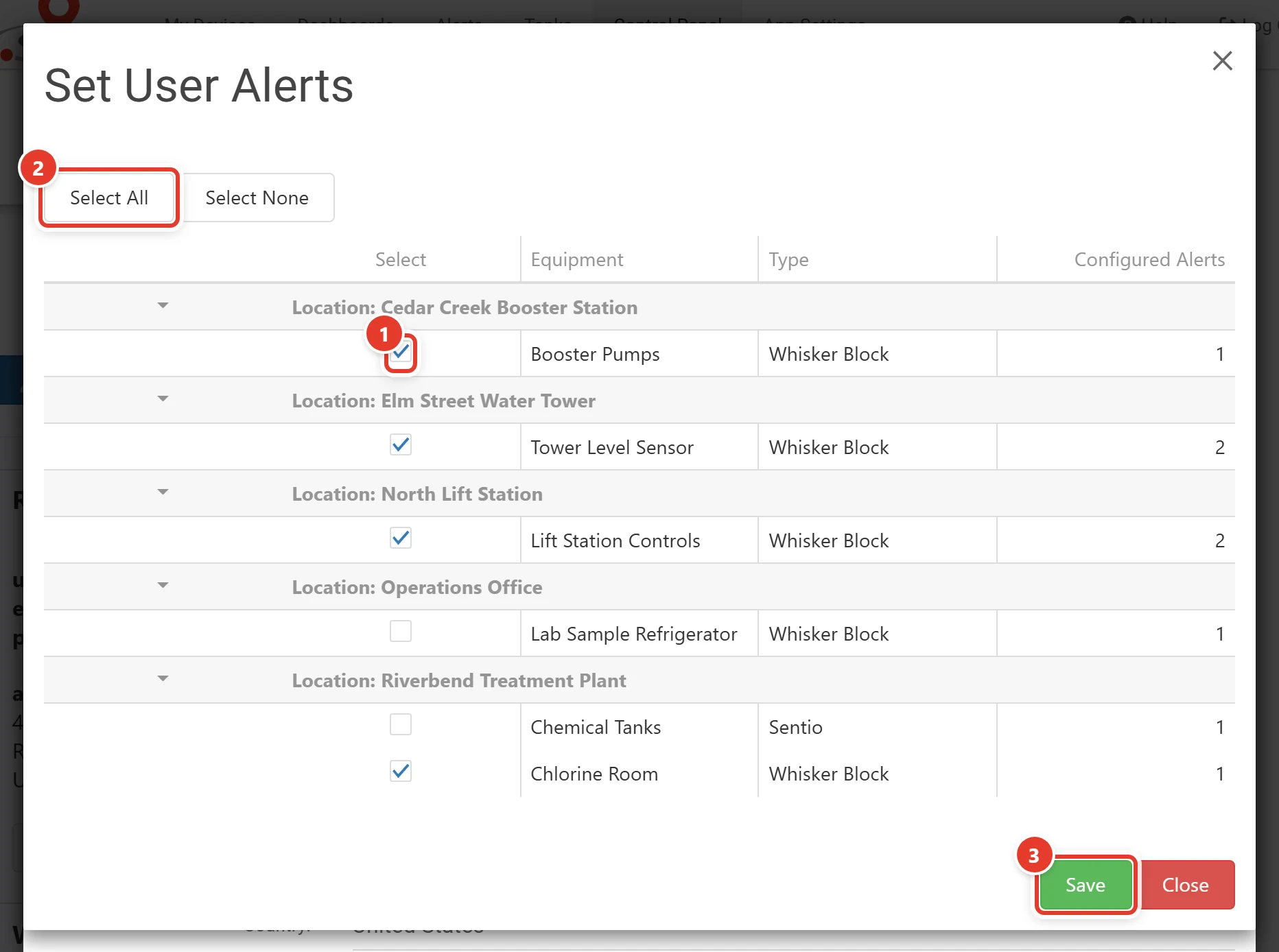
- Tick each device whose alerts this person should receive. Devices are grouped by location; Configured Alerts shows how many alerts each one has.
- Select All or Select None ticks or clears the whole list.
- Click Save. A message confirms how many alerts the contact was added to.
Note
Set User Alerts adds the contact to alerts that notify a plain list of contacts. Alerts that use a schedule group you manage are not changed: for those, add the person to the right schedule in Alerts → Alert Schedules (see Schedule groups).
To change a user's subscriptions later, open Edit User and click Edit Alerts. If the user has no alert contact yet, one is created; if they have one, the devices they already receive alerts for are pre-ticked.
Edit a user
Go to Control Panel → Account Users, expand the user and click Edit User. The dialog has the same fields as Create New User, plus:
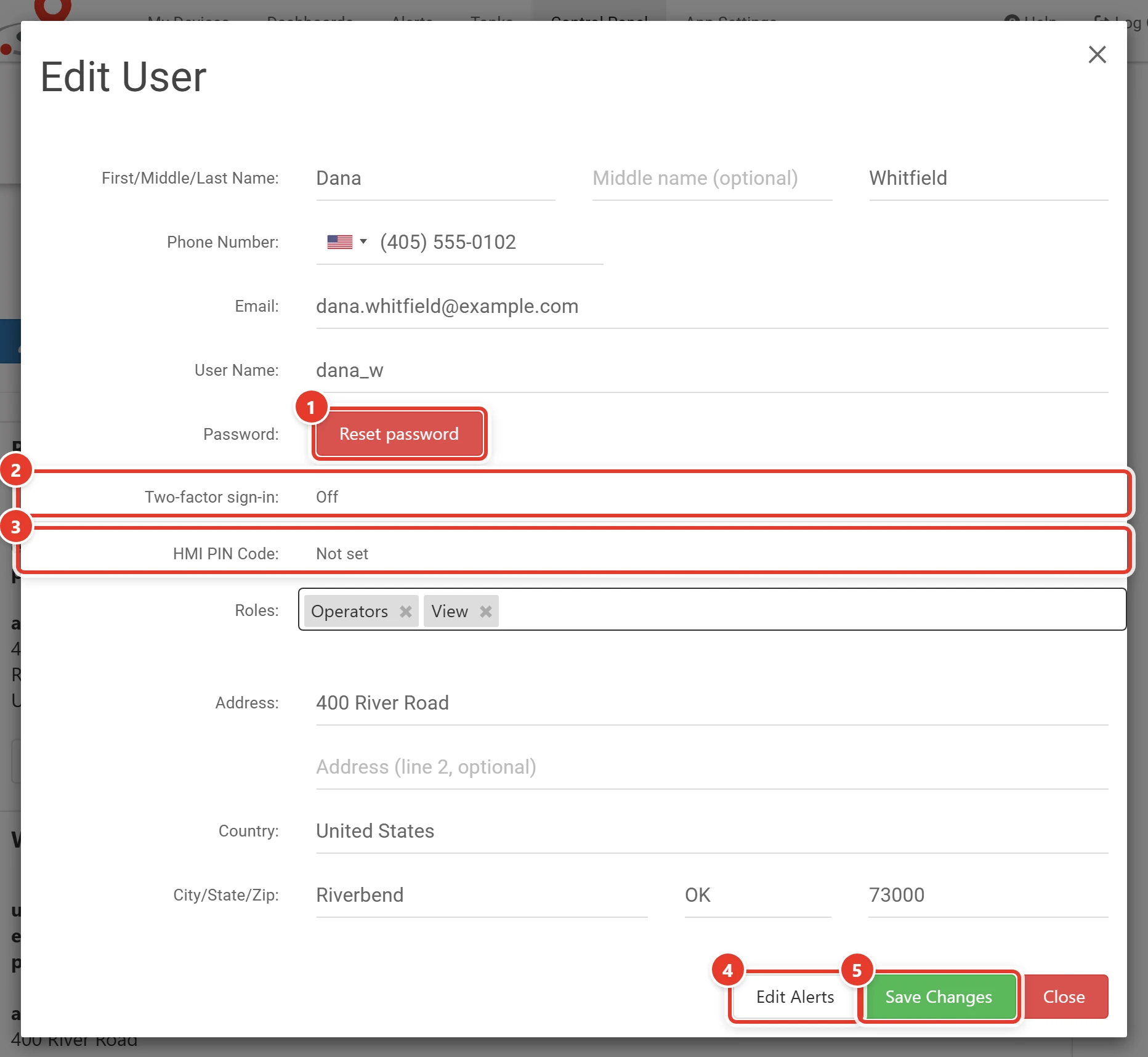
- Reset password (on someone else's user) or Email me a link (on your own) sends a link to choose a new password. Nobody types a password here.
- Two-factor sign-in: how this person signs in, with Reset 2FA if they lose their phone.
- HMI PIN Code: whether a PIN is set, with Reset PIN when there is one.
- Edit Alerts opens Set User Alerts for this person.
- Save Changes saves the dialog. You'll see "User Successfully Edited!!!".
More about passwords, two-factor and PINs
- Password:
- On your own user, Email me a link emails you a link to choose a new password. Your current password keeps working until you use it. The same button is in Control Panel → My User Info.
- On someone else's user (you need the Add User role), Reset password stops their current password at once, logs them out everywhere and emails them a link (24 hours) to choose a new one. For a user who never set a password, Resend invitation sends a new invitation.
- When any link is used, every browser and phone signed in as that user is logged out.
- Two-factor sign-in: the user's method (Off, Texted codes, Authenticator app, or Authenticator app required, not set up yet). People set it themselves in My User Info (see Logging in), or your account policy requires it. If someone loses their phone, click Reset 2FA: their app and recovery codes stop working, they're emailed, and they set it up again at their next sign-in if the account requires it.
- HMI PIN Code: the PIN's status (for example Set, Not set, or Set, does not meet the 6 digit requirement) and, when a PIN is set, a Reset PIN button.
If the user has a linked alert contact, the contact's name, email and mobile number are updated to match.
Resetting a user's PIN
Administrators cannot see or set another person's HMI PIN code. If someone forgets theirs:
- Open their Edit User dialog.
- Click Reset PIN on the HMI PIN Code: row.
Their PIN is cleared and they are signed out. They set a new PIN the next time they sign in (see Logging in).
Removing a user
The portal has no button for deleting a user. To stop someone signing in, contact D6 Labs support. To stop them receiving alerts, remove their alert contact from your schedules and alerts (see Alert contacts).
View Only users
A View Only login is meant for wall displays and kiosk screens. It shows in the Account Users list in italics as View Only User, with the note "This user doesn't have access to the control panel, and can not create or edit anything on your account."
A View Only user:
- can look at locations, HMIs and dashboards, but cannot change anything;
- does not see Control Panel in the top menu;
- stays signed in on that browser, so an unattended display doesn't need a daily sign-in.
Contact D6 Labs support to add a View Only login to your account.
User permission levels
Besides roles, each user has a permission level of Basic, Admin or MasterAdmin, or is a View Only user. The level is set by D6 Labs and is not shown in the portal; what a person can do in your account is controlled by the roles they hold.